| Previous
What happens if the proctor rejects your prerequisite check?
|
Test in progress: Various anomaly detection situations?
|


Proceed to Exam
To proceed with the exam, click on the Begin exam button.
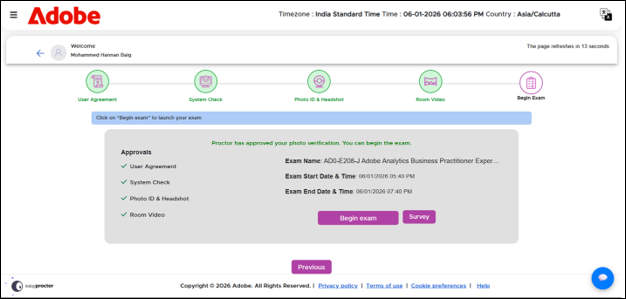
After clicking on Begin exam button, the screen share options page will appear.
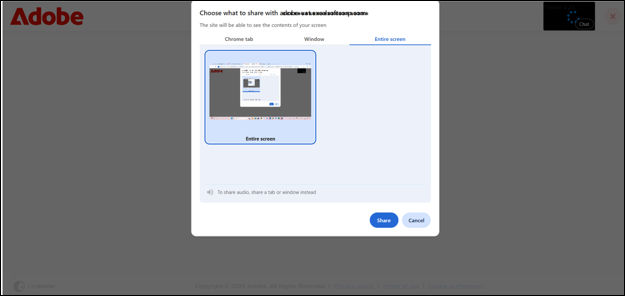
Select the screen or window you wish to share, then click Share to continue.
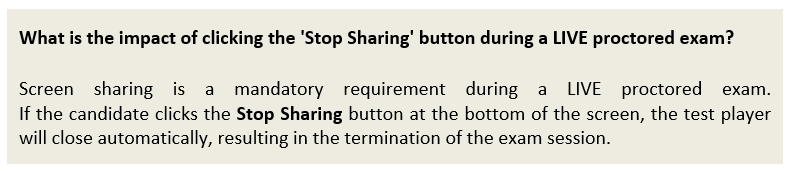
The system will then take you to a screen where you will need to allow full screen access.
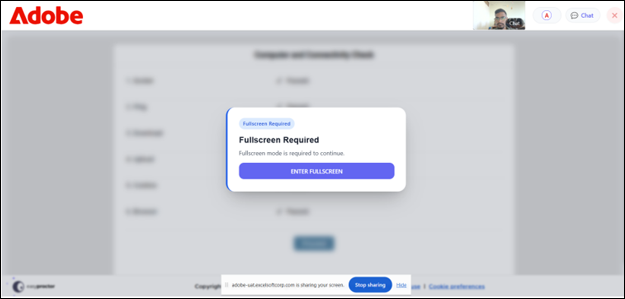
Click on the Enter Fullscreen button to get the below screen.
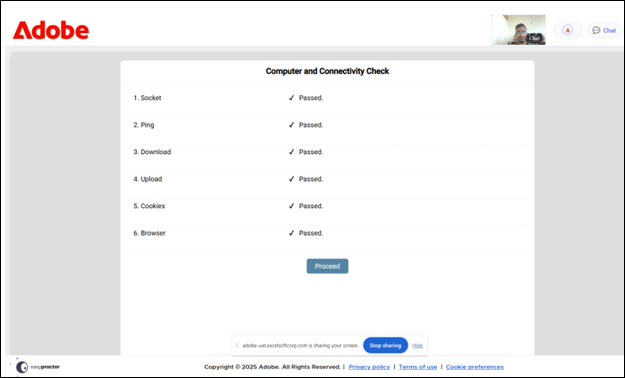
Clicking the Proceed button will take you to a confirmation screen, where you will be asked to confirm that you are ready to begin the test
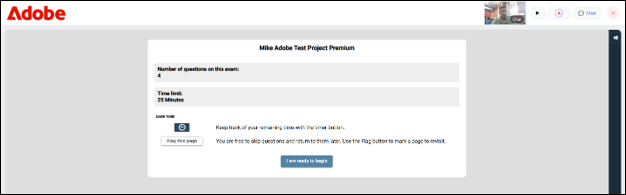
Click I am ready to begin will navigates to the test player screen, where the actual test begins as shown below.

|
Initially test will be in pause state once you launch the test. Wait for Proctor to resume the test. This will take approximately 20-30 seconds max.. |
 Other Topics