| Previous
|


Test in progress: Various anomaly detection situations
Scenario: 1 - Multiple Face Detection
While taking the test, if the camera detects more than one face after the candidate has started the test, a warning message will appear on the screen, as shown in the example image below.
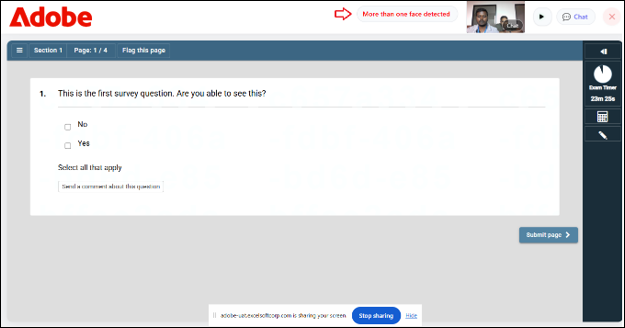
If the camera detects more than one face after the candidate has started the test, a warning message will appear stating that multiple faces have been detected.
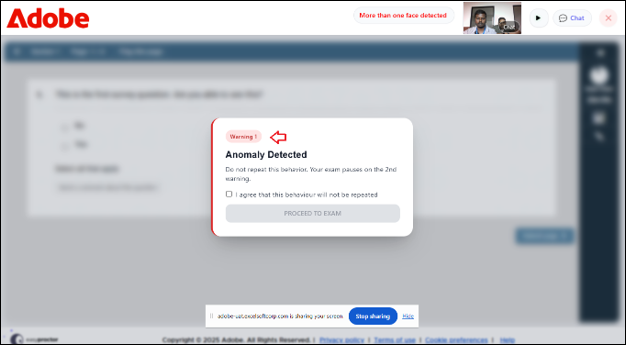
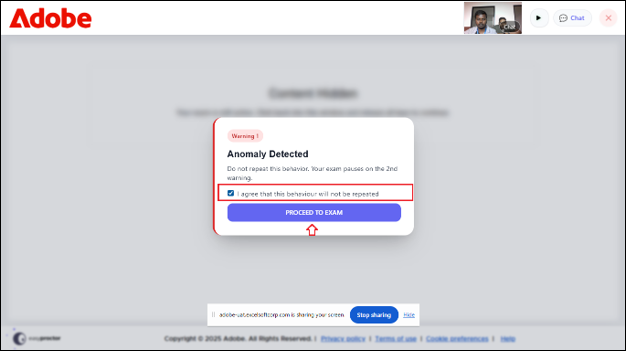
The candidate will be prompted to acknowledge the message before proceeding, as illustrated in the image below.
If, after the first warning, the camera still detects more than one face during the test, a final warning will appear on the screen stating: “Further violations will pause your exam. More than one face detected.”
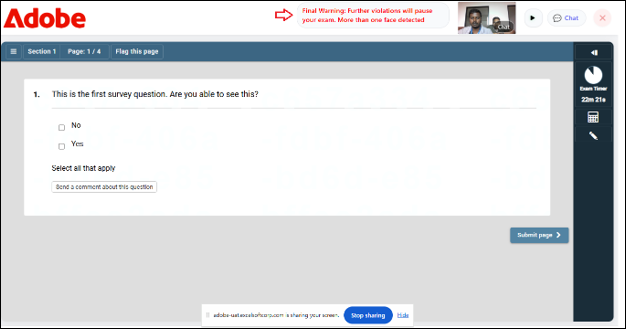
This acts as a strict reminder to maintain exam integrity and avoid any behaviour that could lead to the exam being paused or suspended.
Scenario: 2 - No Face Detected
If the camera fails to recognise a face (for example, due to poor lighting, the person moving out of frame, or the webcam being blocked), the system immediately triggers an inline notification stating No face detected. Refer to the below image below.
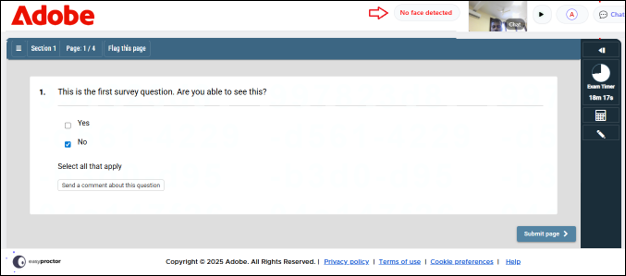
This notification serves as a real-time alert, reminding the candidate to adjust their position or environment so that their face is clearly visible.
Scenario: 3 - Electronic Items Detected
If electronic items (such as mobile phones, tablets, or other unauthorised devices) are detected, during the test, an inline notification will appear stating Electronic items detected.
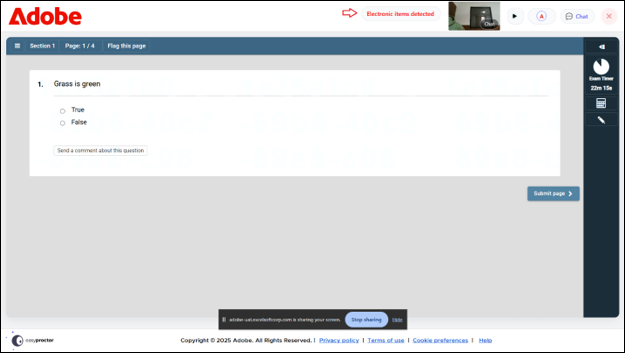
This notification serves as a warning to the candidate that such items are not permitted during the assessment. The purpose is to prevent cheating, distractions, or breaches of exam integrity. Candidates are expected to remove or stop using these items before continuing with the test.

|
If any unpermitted application is detected during the exam, the name of the unpermitted application will get displayed next to the Unpermitted Application Detected flag for the proctor.. |
 Other Topics