| Previous
Downloading and Installing the Process Tracker from Adobe-CMS Info
|
|


Step-2 Pre-Assessment Check
-
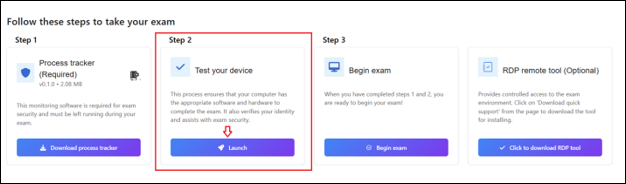
Prior to the exam, candidates should launch the application to verify that it is functioning correctly. For this click on the Launch button.
-
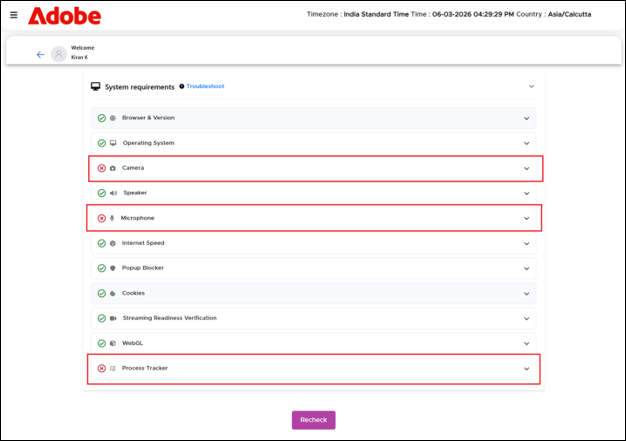
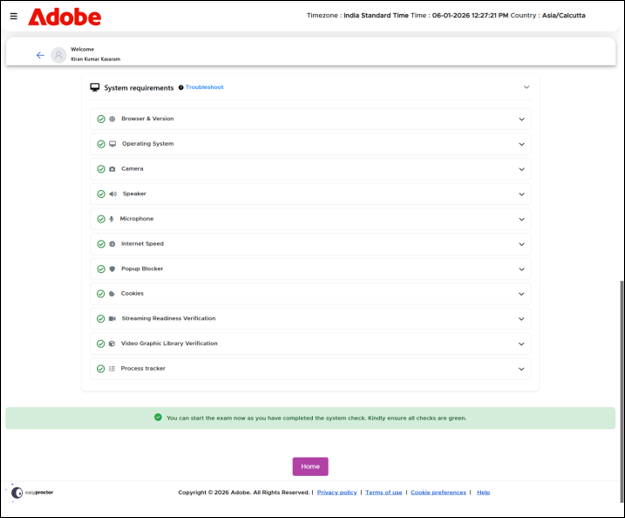
The application must remain active throughout the entire assessment duration on the exam day. You will be navigated to the System Requirements page as shown below.
-
The System Requirements verifies all essential hardware and network components required for proctoring the assessment.
-
Candidates are presented with a list of pre-requisite checks, indicating which items have passed and which have failed.
-
This process helps ensure the system is fully compatible and ready for a secure assessment experience.
Common Reasons for System Requirements Failures
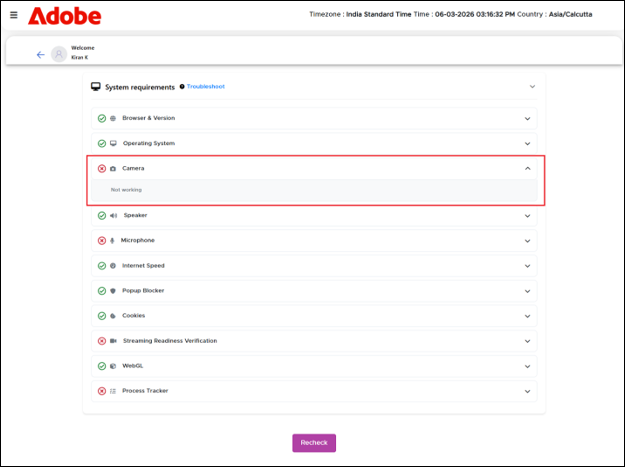
System Requirements failures before a LIVE proctoring exam typically occur due to hardware, software, or connectivity issues that prevent the exam platform from verifying your setup. Click the icon to see why the system requirements failed. Click the icon to see why the system requirements failed as shown below.
-
Webcam Not Detected or Malfunctioning - The system cannot access your webcam.
-
Microphone Issues - Microphone is muted, not connected, or inaccessible.
-
Poor Internet Connectivity - Unstable or slow internet speed below platform requirements.
-
Unsupported Browser or Outdated Version - Using a browser that’s not compatible (e.g., Internet Explorer) or running an outdated version of Chrome, Firefox, or Edge.
-
Blocked Permissions - Camera, microphone, or screen sharing permissions are denied.
-
Background Applications Running - Apps like Zoom, Teams, or screen recorders interfere with proctoring tools.
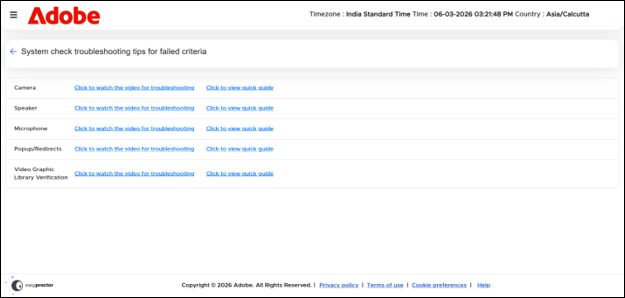
Click on the link to access the System check troubleshooting tips for failed scenarios. Refer to the image below.
Click on the Home button to navigate to Assessment Dashboard portal.
 Other Topics