| Previous
|
|


Survey - Provide Your Feedback
The Survey button in the exam portal allows you to provide feedback about the user’s experience.
When you click the Survey button, which is visible on the right side of the page, a feedback pop up titled Rate your Session appears like the one shown in the image.
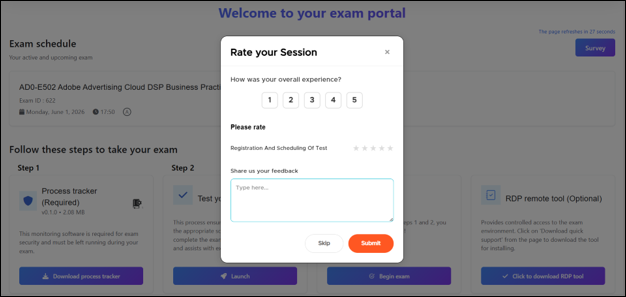
This popup allows users to evaluate their overall experience and provide feedback.
-
Overall Experience Rating
Users can select a rating from 1 to 5, where:
1 = Very poor experience
5 = Excellent experience
-
Detailed Rating Section
Users can rate specific aspects using star icons (typically 1–5 stars).
-
Feedback Text Box
-
A text area with placeholder “Type here…” Users can enter Comments, Suggestions, Issues faced during the session etc.
-
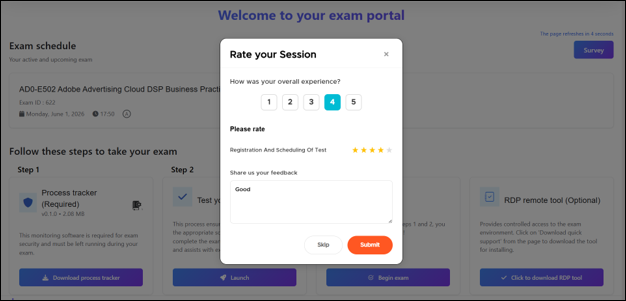
You can either submit or skip the survey. To skip the survey, click the Skip button. After providing your feedback, click the Submit button. A success message will then be displayed on the screen, as shown below.
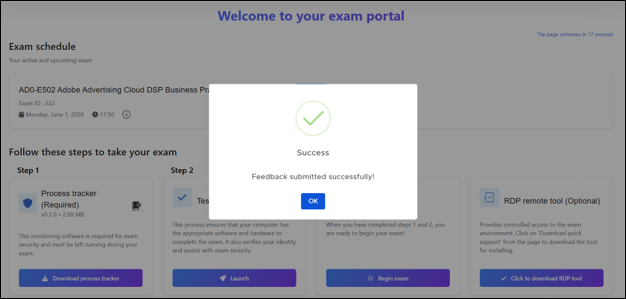
Survey is context sensitive and feedback rubrics will be displayed based on the access point. At this stage, Registration and scheduling is complete and hence only rubrics related to registration and scheduling is listed. You can access the survey from 2 more access points in addition to this. Next survey will be displayed before launching the exam and during the approval process lead time. Last survey will be displayed within the test player once you submit the exam. All responses will be stored and will be displayed in the final submission so that you have an option to modify or update the feedbacks if any from any access point before it is finally submitted.
 Other Topics
Next