Photo ID & Headshot
-
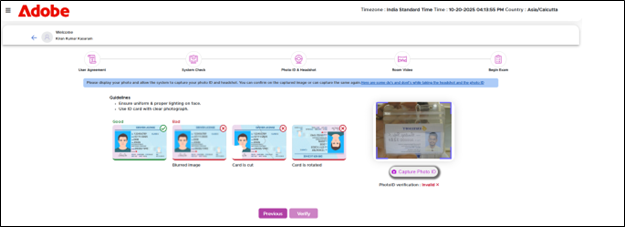
First, you need to show your Photo ID and allow the system to capture your photo.
-
Click on Capture Photo ID and the image will be captured. Redirecting back to the headshot and photo id screen, you need to capture the headshot.
-
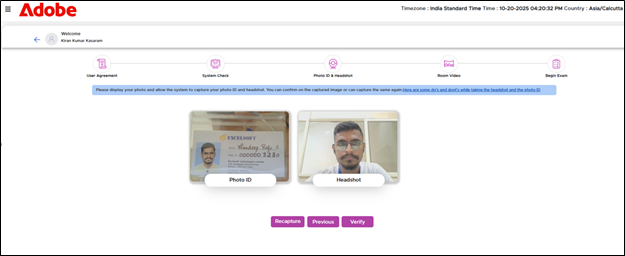
Click on the Capture Headshot and the image will be captured.
-
Here you can view the photo ID and Headshot captures.
-
Provide your valid Photo ID and then capture your headshot.
-
Click on the Verify button.
-
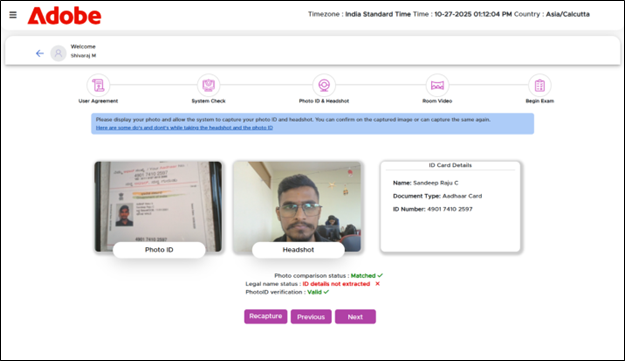
The verification process includes checks for photo comparison status, legal name status, and photo ID validity.
-
If the headshot does not match the photo ID, the system will display a status of Not Matched.
-
It also verifies whether the provided photo ID is valid and whether the legal name matches the ID.
-
If any of these checks fail, you can retake the photo ID and headshot by clicking the Recapture button.

|
You are allowed up to three attempts to recapture your photo ID, but only one attempt to capture your headshot. |
-
Once verified you can navigate to the Room Video capture screen.
| To view the Photo ID Submission Guidelines & Guidelines for capturing headshots, navigate to Homepage >> Step-by-Step Help: Dos and Don’t s |