Previous
Camera failed during basic functionality check

Camera failed during basic functionality check
-
Check the default camera application to verify basic functionality. This step helps identify whether the issue is fundamental.
-
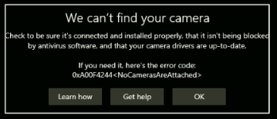
If you encounter an alert like the one shown below, the problem likely originates from the camera hardware or its driver.
-
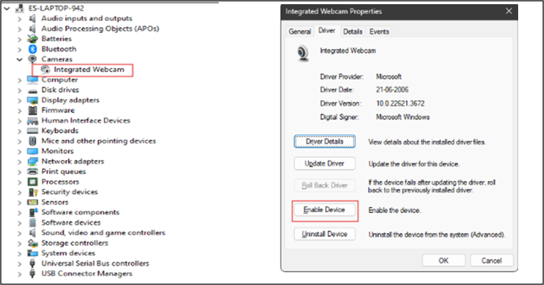
Check the hardware and driver settings by opening Device Manager, which displays a list of all hardware connected to the system.
-
A disabled device will be marked with a downward arrow, while a driver issue—such as an outdated or missing driver—will be indicated by a hazard icon. Refer to the screenshot below
-
Device is in disabled state.
-
If the hardware is in disabled state, right click the hardware and click Enable device.
-
Once done, open the default camera app, and verify if it is working or not.
Next
