
Guidelines for Enabling Video Graphic Library
Before your online proctored exam begins, the system checks whether your device supports graphics acceleration, which is required for smooth and uninterrupted video streaming during the exam.
The proctoring application uses your computer’s graphics library (GPU) to render LIVE video from your webcam and maintain a stable connection with the proctoring service. When graphic acceleration is enabled, video streams load faster, remain clear, and stay synchronized throughout the exam session.
If graphic acceleration is disabled or unavailable, you may experience:
-
Lag or freezing in the webcam video
-
Poor video quality
-
Connection interruptions that could impact exam monitoring
To ensure a reliable and secure exam experience, please follow the steps below to navigate to your system or browser settings and enable graphic acceleration. Completing this step in advance helps prevent technical issues and allows the exam to proceed smoothly without delays.
Steps to enable the Graphic acceleration in browser
-
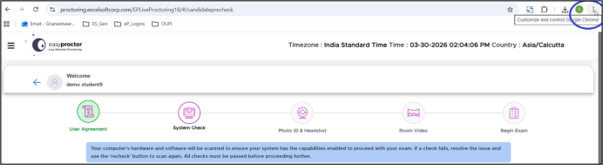
Click on the burger icon or the 3 vertical dots which is set to be the controls of browser.
-
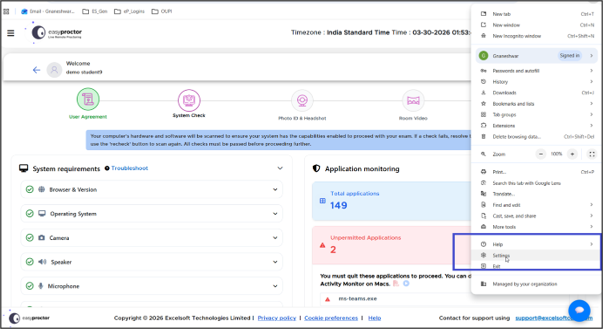
Goto settings and click on the tab
-
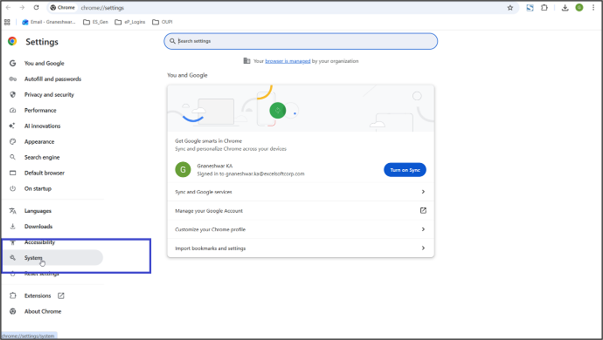
Goto System from the LHS menu list and click on the same
-
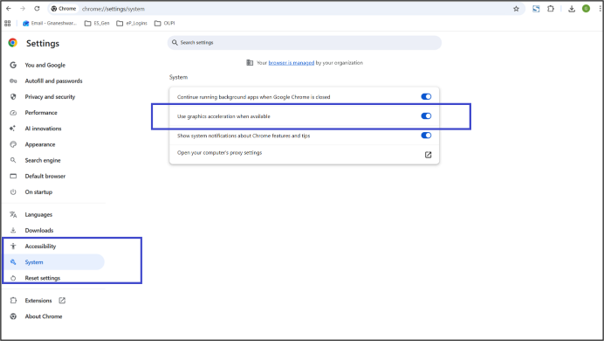
Enable ‘Use graphics acceleration when available’
Navigation Screenshots
Click on the Burger icon.
Click on the settings
Click on the option System.
Enable the ‘Use graphics acceleration when available’
 Other Topics