Speaker Troubleshooting: Ensuring Audio Output Works
If you are experiencing issues with your speakers during the proctored exam, follow these steps to enable them.
Step 1: Check Volume Control
-
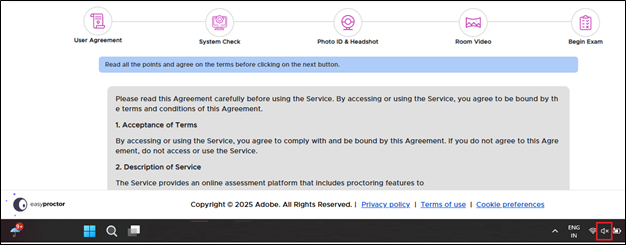
Locate the Speaker icon in the bottom-right corner of your taskbar.
-
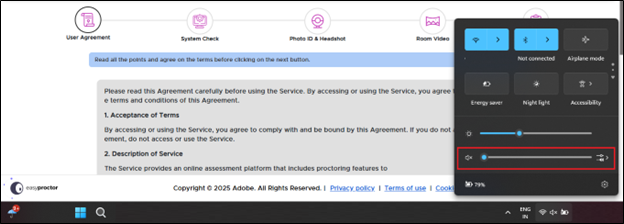
Click the Speaker icon to open the volume control panel.
-
If the volume is too low, drag the slider to increase it.
-
If your speaker is muted, click the mute icon to turn the sound back on.
-
Your speaker should now be active. If you still do not hear any sound, continue to the next step for further troubleshooting.
Step 2: Check Output Device
-
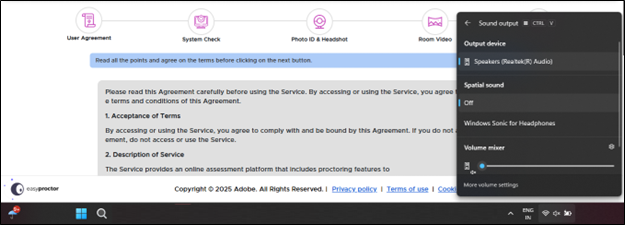
Right-click the Speaker icon in the taskbar.
-
Click on More volume settings link.
-
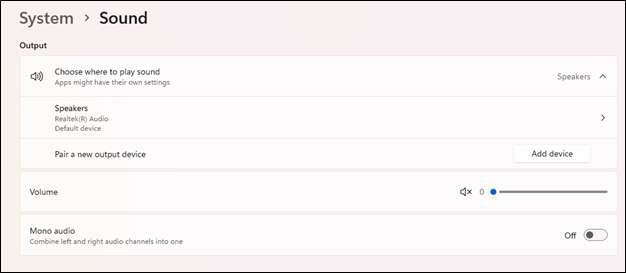
You will navigate to the Sound settings page as shown below.
-
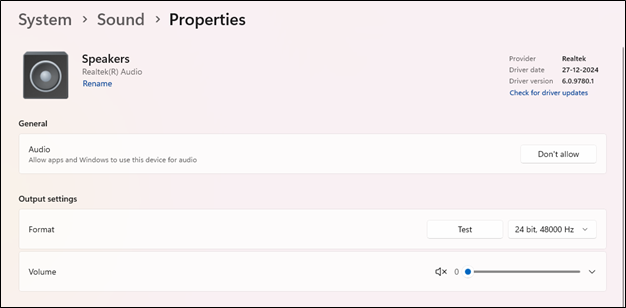
In the Sound Settings window, go to the Output section and click on Speaker’s option.
-
Choose the correct speaker or audio device from the list.
Step 3: Test the Speaker
-
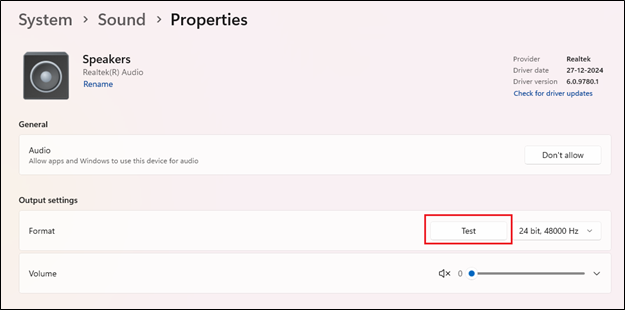
After selecting the correct output device, click Test under the output settings.
-
If you hear sound, your speaker is working properly.
-
If not, check the volume slider again—make sure it's not muted or too low—and repeat the test.
Ready to learn? Click  to play the tutorial.