Microphone Troubleshooting: Enabling Permissions
If your microphone is not working during the exam, follow these steps to ensure the site has permission to use it:
Step 1: Open Site Settings
-
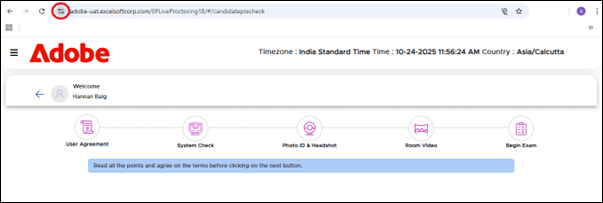
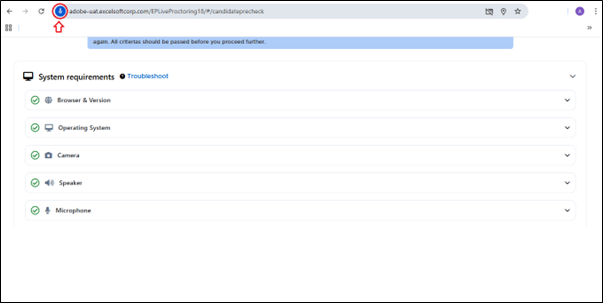
Click the View Site Information
 icon located to the left of the address bar to open the site settings. In the image below, the icon is clearly marked in red to help you identify it easily.
-
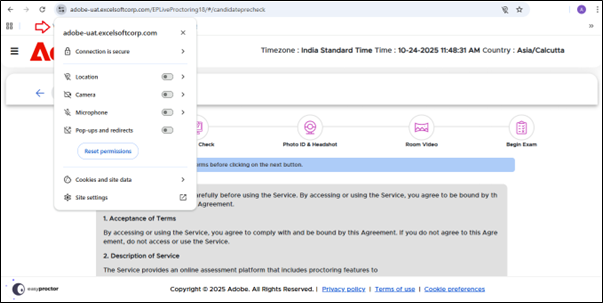
A dropdown will appear showing site-specific settings.
Step 2: Check Microphone Permissions
-
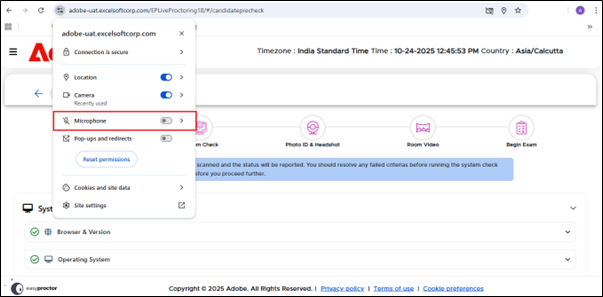
Look for the Microphone setting in the list.
-
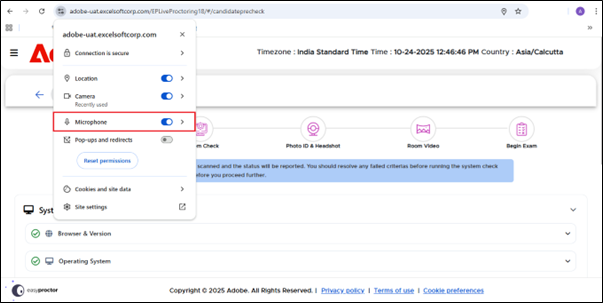
If it shows Blocked or Disabled, click the toggle switch to turn it on.
-
Click the Close icon to exit the site settings dropdown.
Step 3: Reload / refresh the Page
-
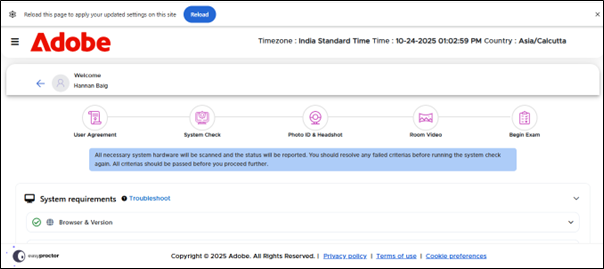
After changing the setting, your browser may prompt you to reload the page to apply the new permissions. Click Reload button.
-
You can also refresh the exam page to apply the new permissions.
Step 4: Test the Microphone
-
The system check screen should now detect your microphone.
Ready to learn? Click  to play the tutorial.