Speaker Troubleshooting Ensuring Audio Output Works
If you are experiencing issues with your speakers during the proctored exam, follow these steps to enable them.
Step 1: Check Volume Control
-
Locate the Speaker icon in the top-right section of your menu bar.
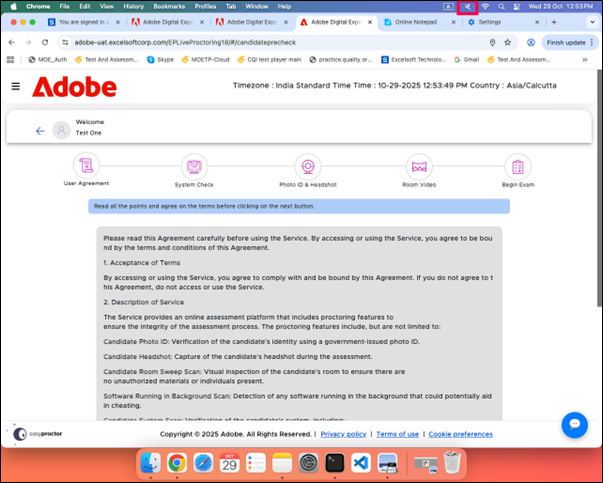
-
Click the Speaker icon to open the Sound and Output device control panel.
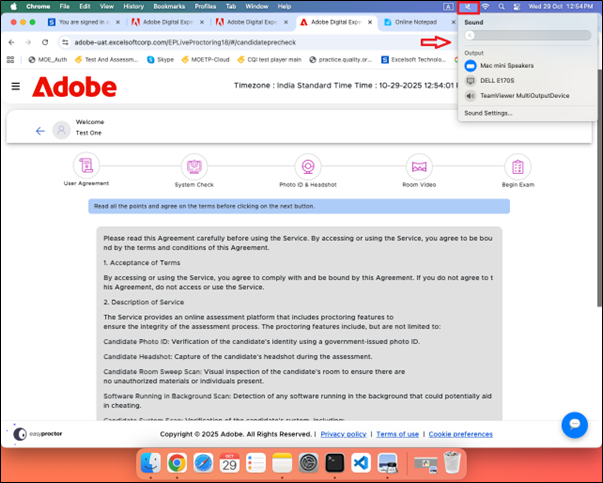
-
If the volume is too low, drag the slider to increase it.
-
If your speaker is muted, click the mute icon to turn the sound back on.
-
Your speaker should now be active. If you still do not hear any sound, continue to the next step for further troubleshooting.
Step 2: Check Output Device
-
Click the Apple menu icon in the top-left corner and select System Settings to launch the menu panel.
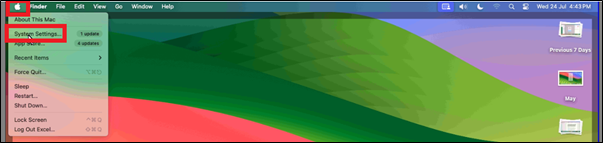
-
Alternatively, you can click the speaker icon in the top-right section of the menu bar and select Sound Settings.
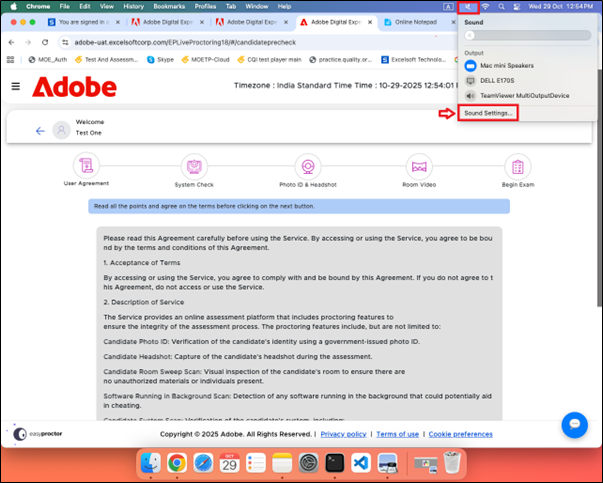
-
Select the Sound option in the menu panel. In the Output tab, adjust the volume slider as needed. If the speaker is muted, clear the Mute checkbox to unmute.
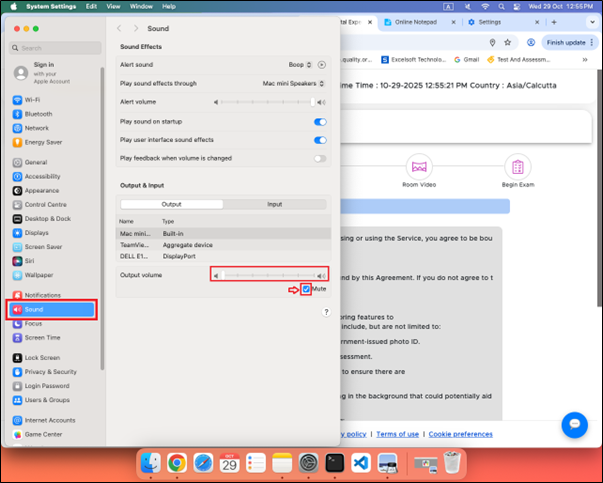
Test the speaker, it should work now.